
Draw and variants
Draw is how you ask your AI tool for a change. Circle an element, describe what you want, and GUIJam previews three takes on it, live in your page.
Circle an element#
Pick Draw in the toolbar, then draw a loop around an element, or tap it. A prompt opens for that element, with its tag and source location in the header.
A stroke that doesn't circle an element becomes a sketch instead.
Describe the change#
Type what you want in plain words, such as "make it pill-shaped and darker", and press Enter. Shift Enter adds a new line.
Circle, then describe
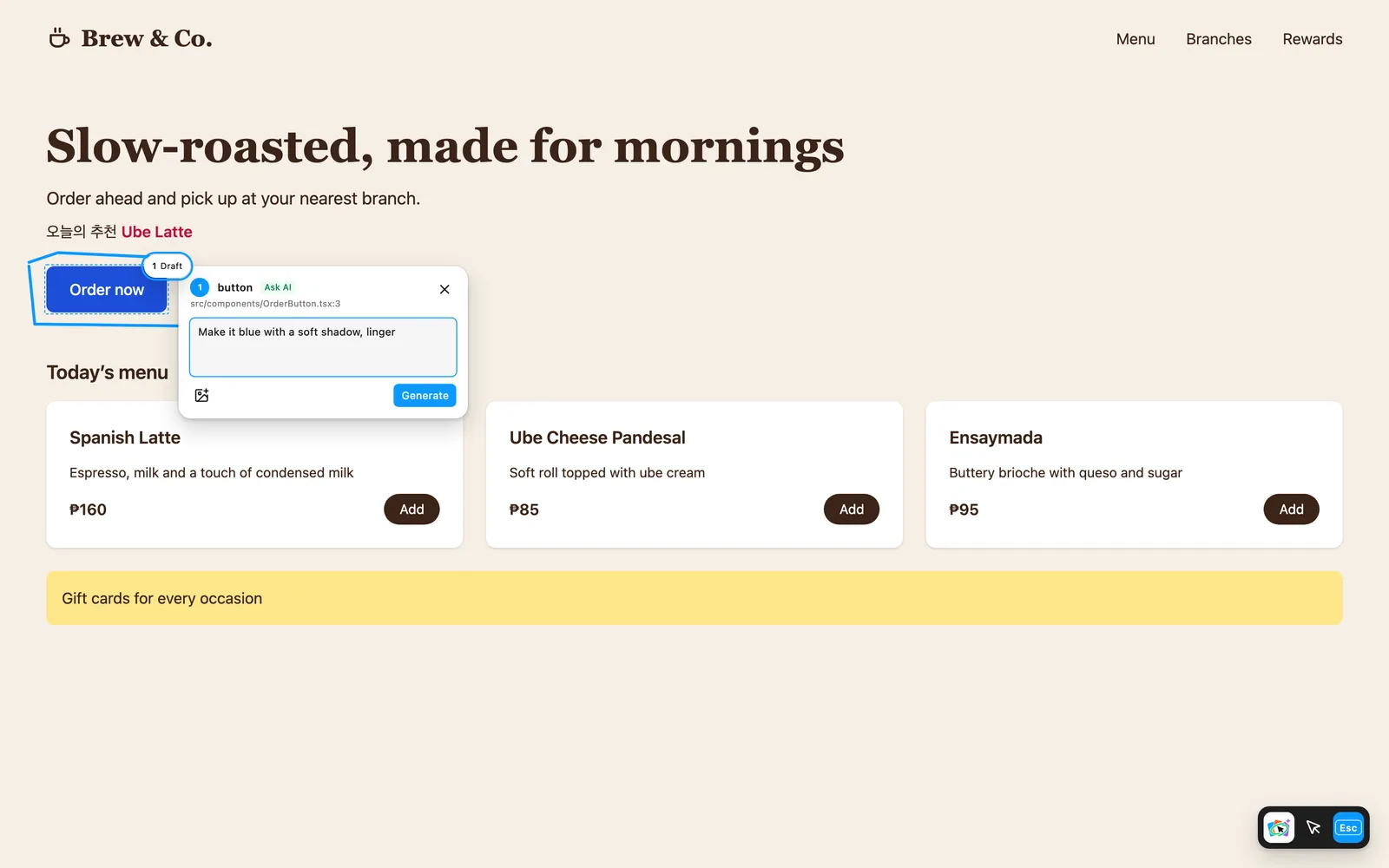
You can paste or drop images next to your prompt, or paste links for visual direction. See Images and links.
If your prompt is a precise color or radius change, GUIJam makes it right away with no model call. See Exact edits without AI.
Watch it work#
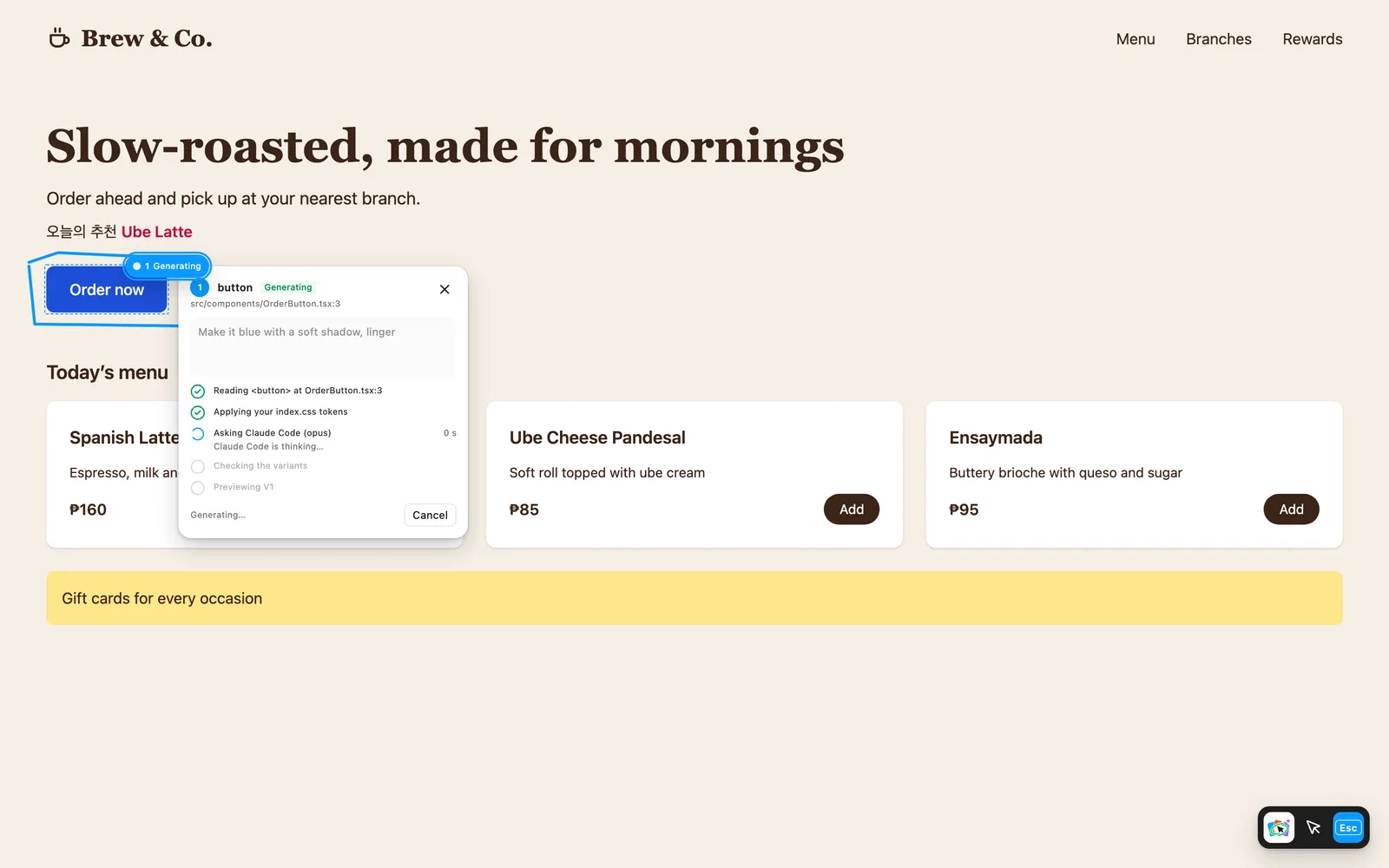
While your AI tool works, the panel shows its progress, for example:
- Reading
<button>atOrderButton.tsx:14 - Asking Claude Code (haiku)
- Checking the variants
- Previewing V1
When your prompt has a sketch, images or links, extra steps such as "Reading your sketch", "Looking at your 2 images" or "Reading your link" appear before your AI tool is asked.
If it takes a while, the panel says how long to expect. After 3 runs in this project with the same AI tool, model and kind of request, it says "Still generating. With this AI tool and model the first variant usually takes about <N> s." That's the middle of the last 10 runs, counted from when you pressed Generate.
You can keep working while it generates. Its badge shows Generating while it runs.
Progress
Compare three variants#
GUIJam asks your CLI three times at once, for one variant each, and gives each run its own direction:
- Do exactly what the request asks.
- A distinctly different visual take.
- The simplest version that works.
Each variant gets its own one-word style, such as Solid, Soft or Outline. Because a drawing sends your prompt, the code and any images to your AI tool three times, it uses more of your plan or credits than a single request would.
Variants appear as they finish. The first one is previewed on your page right away, unless it needs a library installed, and the rest show Writing… until they land, with "Writing 2 more variants…" in the header. You can switch, Use or Discard before the last one arrives. Use, Discard and cancel stop the runs that are still writing.
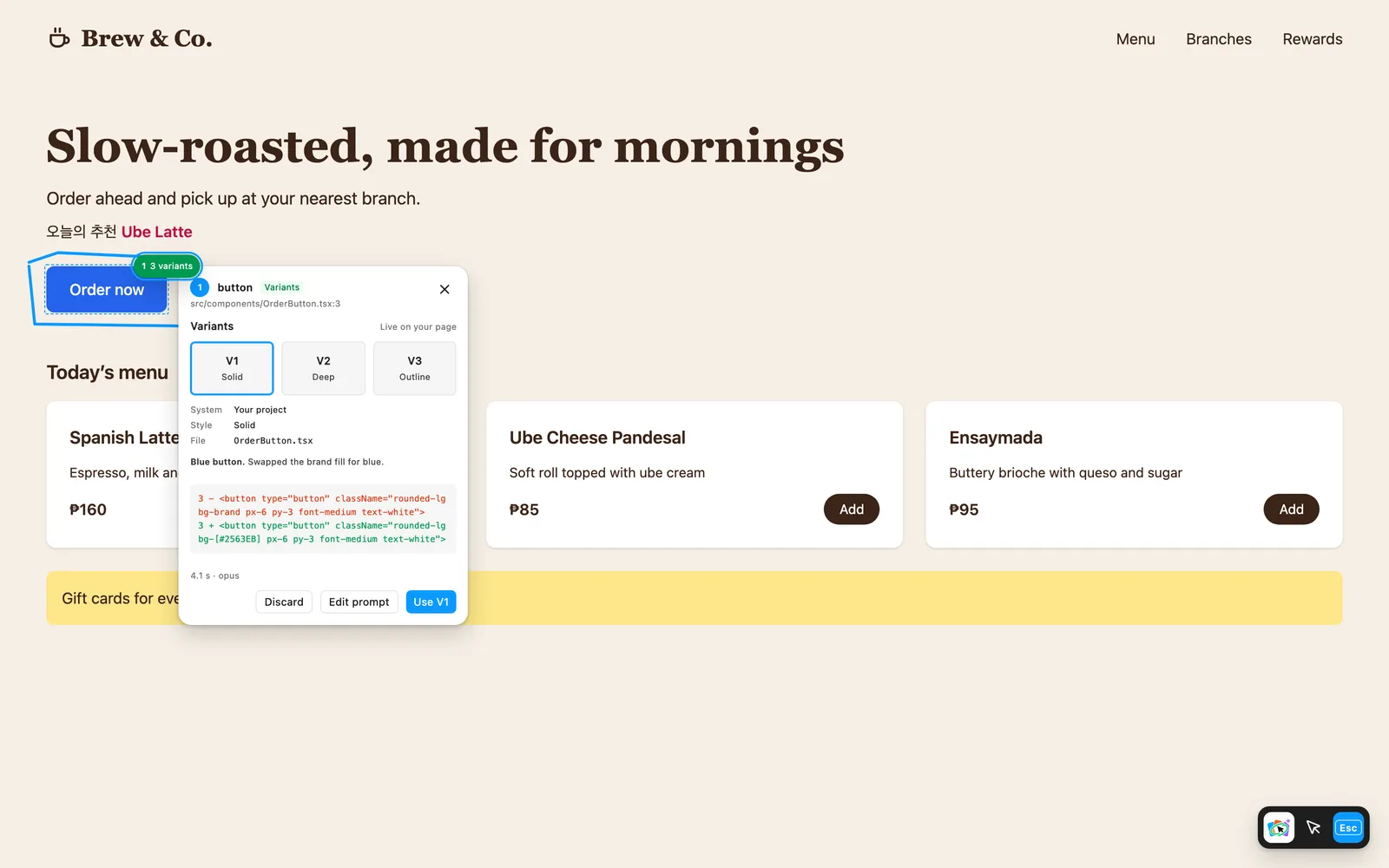
- The first variant is live on your page. Click V2 or V3 to switch.
- Switching never changes your source files. Previews are served from memory through your dev server.
- For each variant, the panel shows its design system, its style, the files it edits and any libraries it adds, with a one-line rationale and the exact diff.
- The panel also shows how long the run took and which model answered.
Three variants, live on the page
Then:
- Use V1 (or V2, V3) writes that variant to your source.
- Edit prompt lets you refine the request and generate again.
- Discard drops the variants.
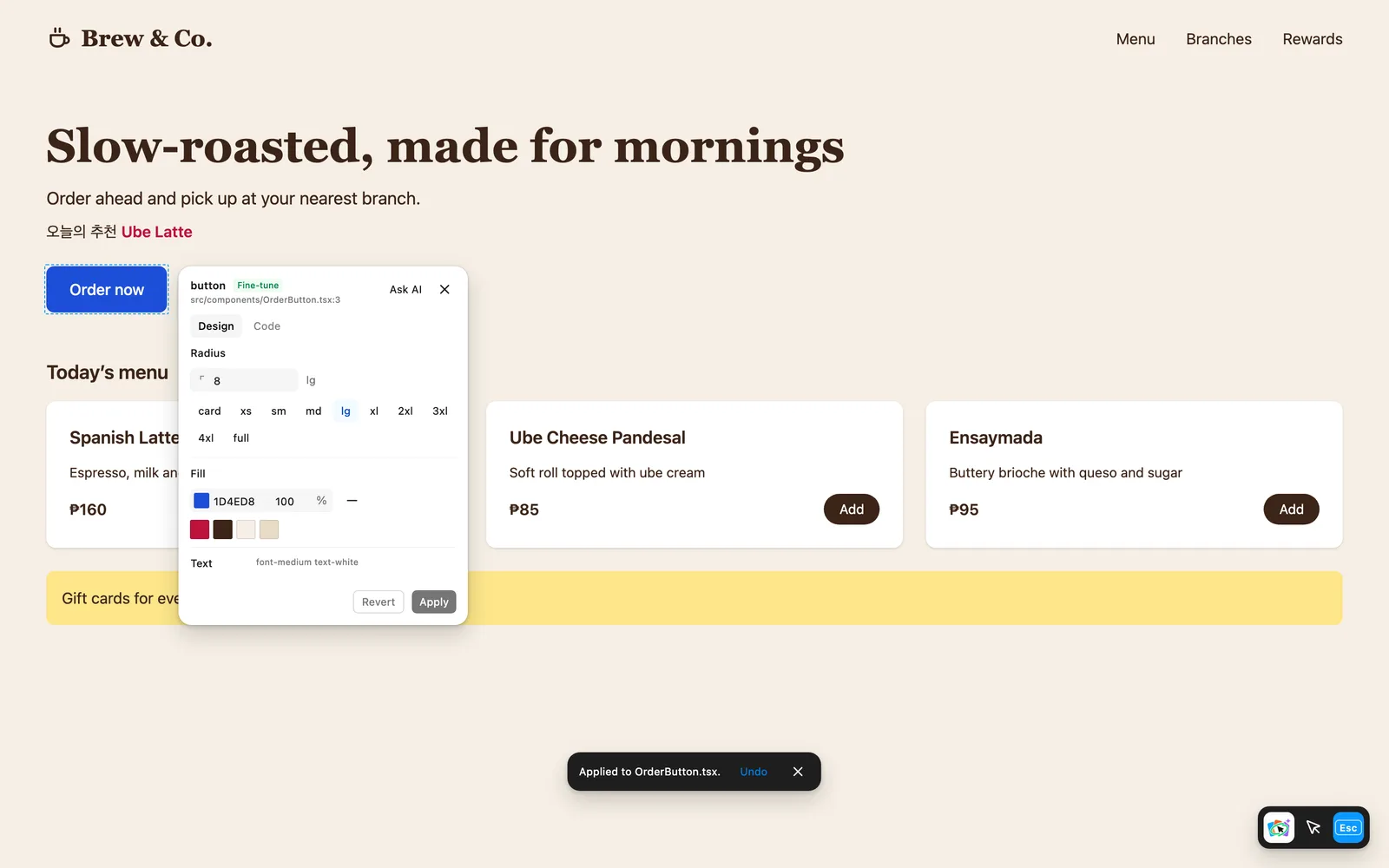
After Use, an Undo toast stays for 10 seconds.
Applied, with Undo
Move, remove or comment out#
Circle or select a component and ask "remove this", "comment this out" or "move this to the employee dashboard, under the onboarding tasks". These changes belong in the file that renders the component, not in the component's own file, so GUIJam also shows your AI tool:
- The files that render the component you picked.
- The files and components you name, in plain words too: "employee dashboard" finds
EmployeeDashboard.tsx. - Where the components you name are rendered.
Your AI tool can edit any of these files, and only these. A removal takes out the component's tag and its unused import where it is rendered. Commenting out wraps the tag in {/* */}. A move takes it out and puts it in the new place, with its props and its import. The component's own file stays as it is.
A variant that edits several files previews them together and lists them under Edits. Use writes them together ("Applied to App.tsx and MenuCard.tsx.") and Undo restores them together. When a variant removes the element you picked, the panel says "Not on the page in this variant." When it moves it, the outline follows it.
If you describe a place without naming a file or a component, your AI tool may answer with the file it needs. Name that file in your next prompt.
Variants that need a library#
Requests that need three.js, Motion or GSAP can use them. The variant shows Install and preview instead of installing anything on its own. A variant can add at most 4 libraries, and GUIJam installs only releases that are at least 14 days old.
Undoing a change that installed a library removes the code but leaves the library installed.
Up to three at once#
You can start up to three drawings at once. Each gets a numbered badge, and only one variant is previewed at a time. When three are already running, GUIJam says "Up to 3 drawings at a time. Use or discard one first."
At most six runs of your AI tool go at once, which is two drawings' worth. Runs beyond that wait their turn and say "Waiting for another drawing to finish…". Cancel stops them too.
When your file changes meanwhile#
If you save the same file while a drawing generates, GUIJam re-applies the variant to your new content instead of failing. If it no longer fits, GUIJam says "This variant no longer fits <file>: it changed after the drawing was made." Generate again to start from your latest code.
Time limits#
| Request | Time limit |
|---|---|
| A short style or motion change | 60 s |
| A larger change | 180 s |
| With 3 or more images, or any link | 300 s |
When a request mentions changes across many files, such as "refactor" or "every page", GUIJam notes that "Changes across many files work best from your CLI session. GUIJam edits the selected file and the files it shows the AI."