
Select and fine-tune
Fine-tune is the fastest way to adjust an element. There is no AI involved: GUIJam reads the element's real classes and styles, and writes a precise, one-line change to the component that renders it.
Select an element#
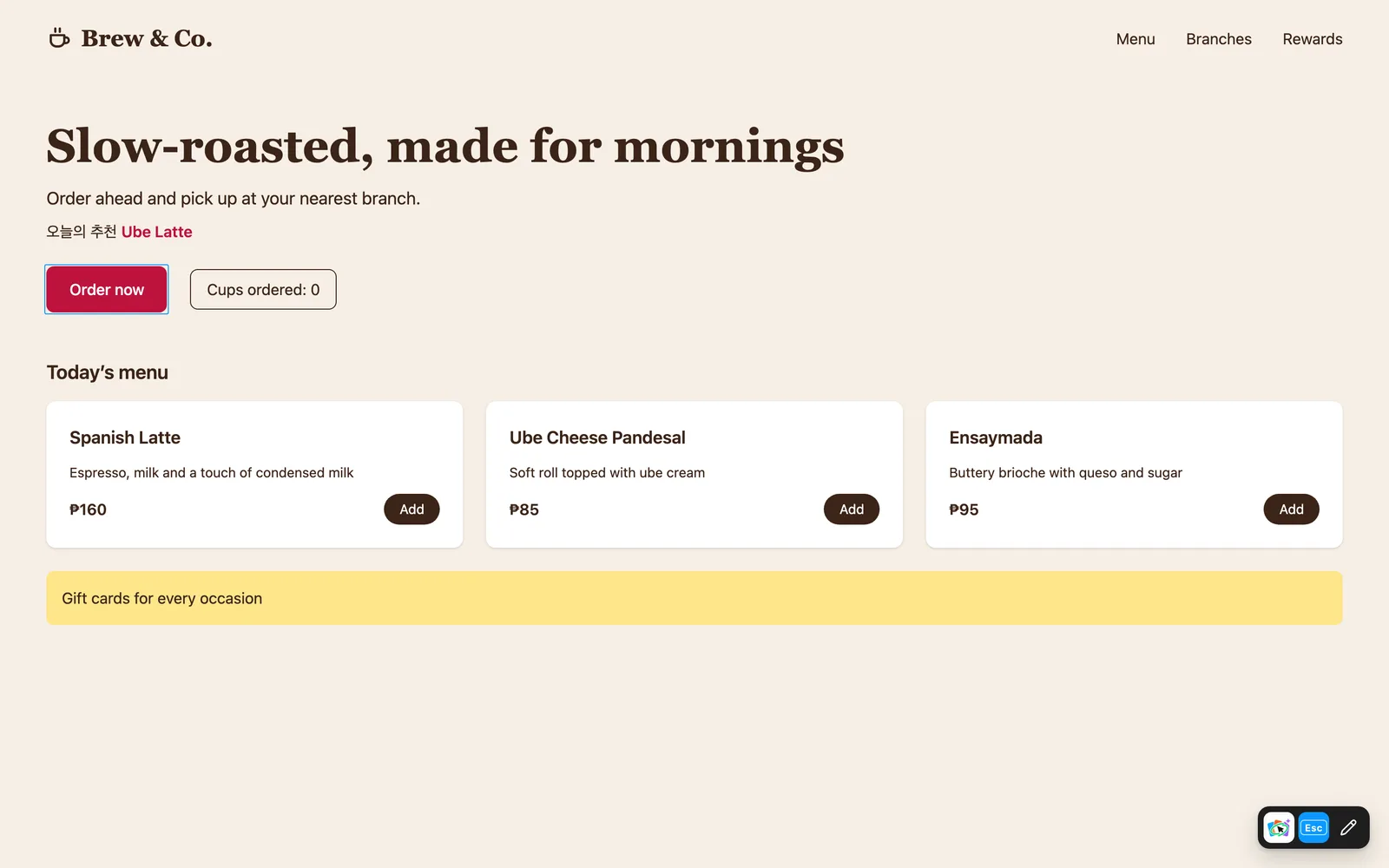
Pick Select object in the toolbar. Elements get a blue outline as you hover them. Click one to open the fine-tune panel next to it.
Select, hovering a button
The panel header shows the element's tag and the file and line that rendered it, such as src/components/OrderButton.tsx:14. When the same component appears more than once, the panel says so: "Used N× on this page. Changes apply to every instance."
The Design tab#
The Design tab lists the element's properties in the order a design tool would: Radius, Fill, Stroke, Text, Effects and Opacity.
- Radius can be set from 0 to 999 px, picked from your theme's radius presets, or set to full.
- Fill takes a hex color with 0 to 100% opacity, picks from your theme's color swatches, or removes the fill.
- Stroke, Text, Effects and Opacity are shown read-only, with the tokens the element uses.
Fine-tune, Design tab
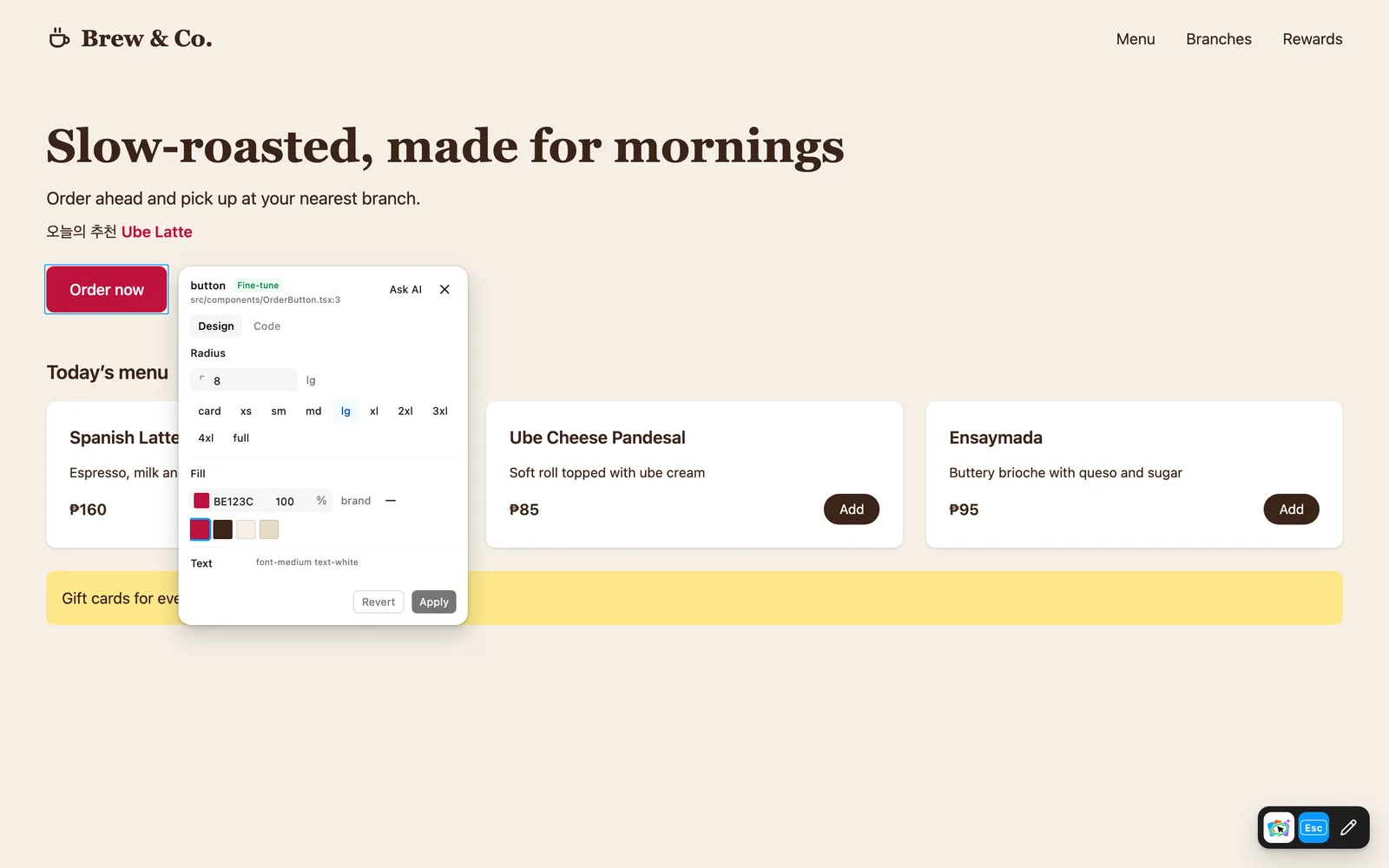
Radius and Fill are the two properties you can edit today. GUIJam prefers your theme's tokens, so a change becomes bg-brand rather than a raw hex value when your theme has a match.
Live, but not saved#
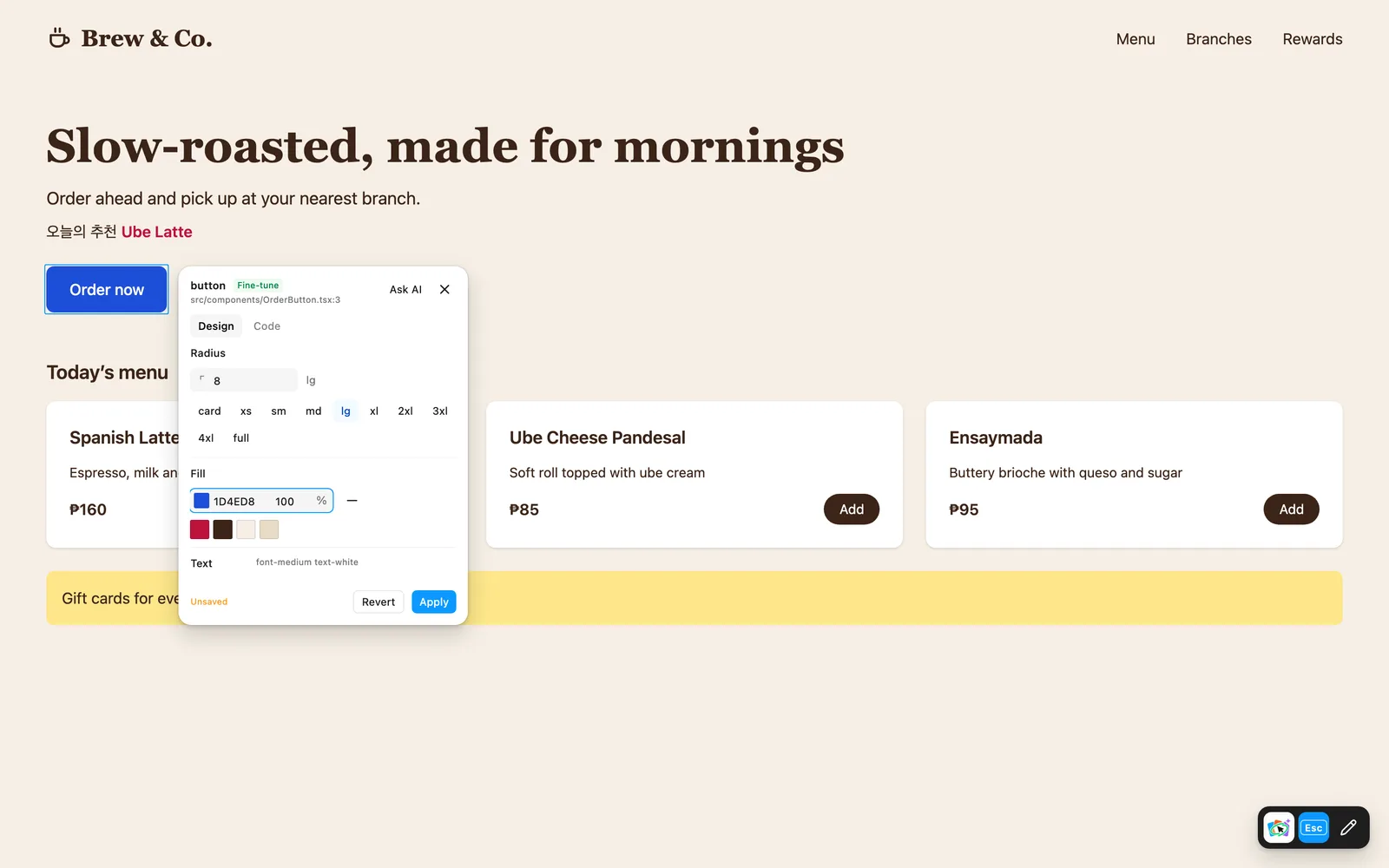
Every tweak previews live in the page about 120 ms after you stop changing it. Nothing is written yet: the panel marks the change Unsaved.
- Apply writes the change to your source file.
- Revert puts the element back the way it was.
- Closing the panel with Esc also reverts unsaved tweaks.
A live, unsaved change
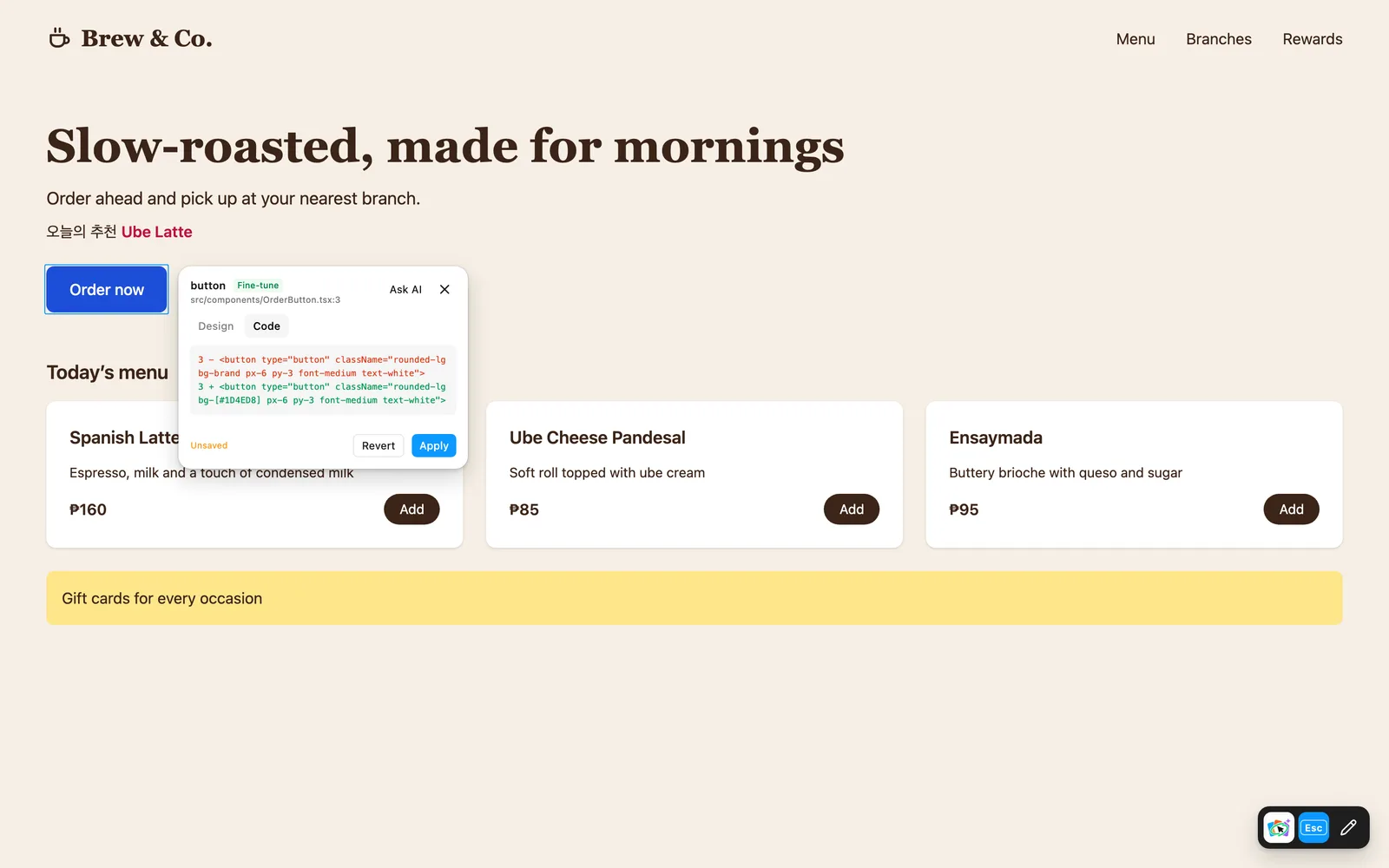
The Code tab#
The Code tab shows the exact lines that will change, as a before and after diff. What you see there is what Apply writes.
Fine-tune, Code tab
What gets written#
GUIJam writes the change in the style your project already uses:
| Your project | What fine-tune writes |
|---|---|
| Tailwind CSS | Tailwind classes, using your theme's tokens |
| Vuetify components | The component's color and rounded props |
| Anything else | Inline styles |
See Styling for details.
When fine-tune can't edit an element#
Some elements can only be changed through the AI:
- "This className is computed at runtime, so it can only be changed with Ask AI." The class comes from code GUIJam can't rewrite safely, such as a function call.
- "The element already looks like that." Your change matches what's already there.
The Ask AI button in the panel header opens a prompt for the selected element, so you can describe the change instead. If you had unsaved tweaks, they are reverted first.
Below the header, Sketch what you want for this component lets you draw on the element to show the change.