
The GUIJam toolbar
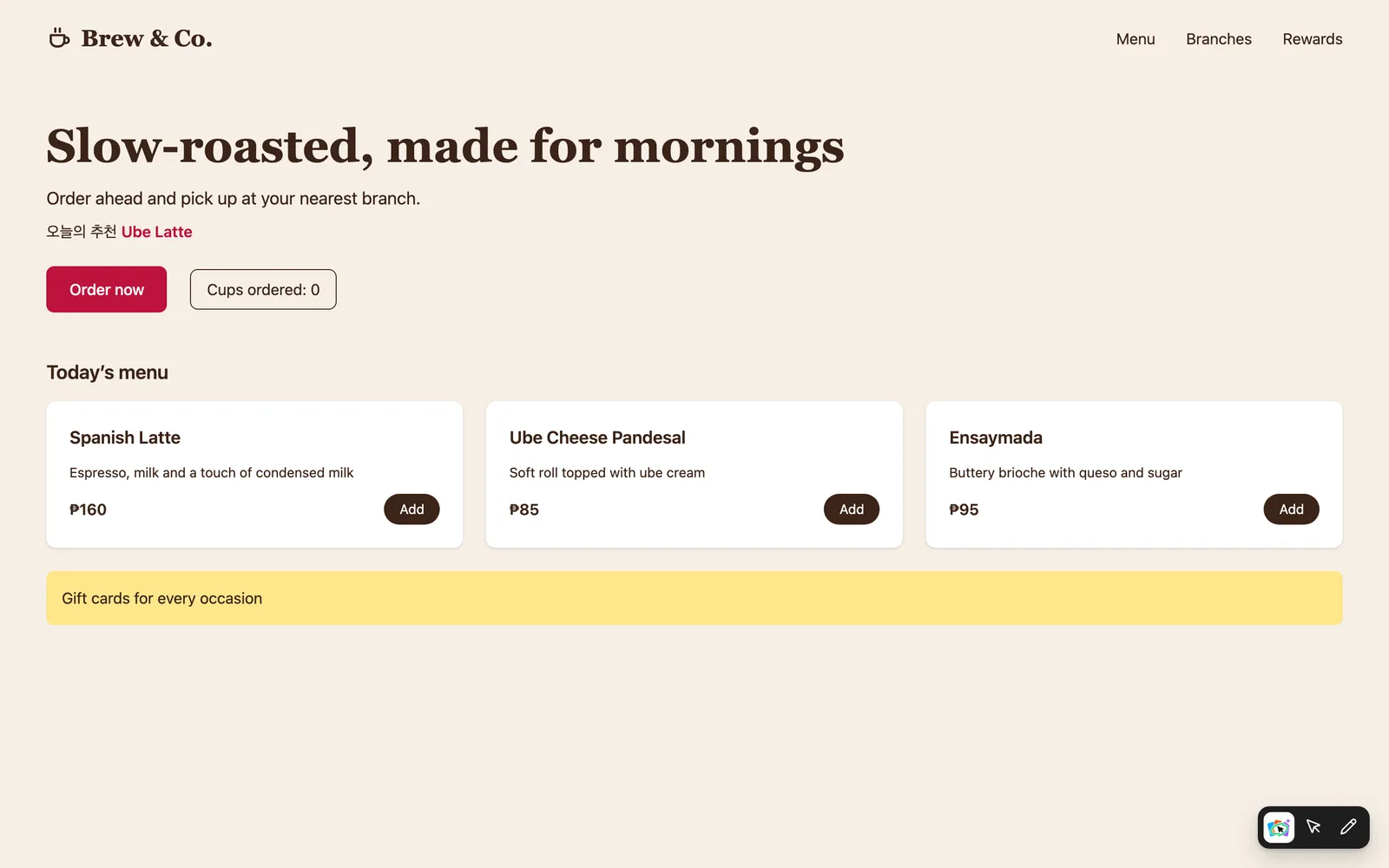
When GUIJam is wired in, a small dark toolbar sits at the bottom right of every page your dev server renders. It has the GUIJam logo and two tools.
| Tool | What it does |
|---|---|
| Select object | Hover to outline elements, click one to fine-tune it or sketch over it. |
| Draw | Circle an element to ask for variants, or sketch something new. |
The rest of the widget loads the first time you pick a tool, so the toolbar costs almost nothing until you use it.
Toolbar
Turning a tool off#
The active tool's icon turns into an Esc key cap, and its tooltip reads "Press Esc to exit". Press Esc to step back:
- With a panel open, Esc closes it. That reverts unsaved fine-tune tweaks, and removes a drawing that has no prompt or results yet.
- With no panel open, Esc turns the tool off.
Hiding the toolbar#
Press Alt Shift M to hide the toolbar, for example to take a clean screenshot. Press it again to bring it back. Hiding it also turns off the active tool.
Drawing badges#
Each drawing gets a numbered badge pinned next to it, so you can keep working while it generates. Up to three drawings can run at once.
| Badge | Meaning |
|---|---|
| Draft | You drew, but haven't sent a prompt yet. |
| Generating | Your AI tool is working on it. |
| N variants | Variants are ready to preview. |
| Answer | Your question has an answer. |
| Failed | Something went wrong. Open it to see why and retry. |
Drawings are kept for the browser tab, so they survive a page reload.
The Undo toast#
After every Apply or Use, a toast at the bottom of the page offers Undo for 10 seconds. Undo restores the exact previous bytes of every file the change touched. See Undo and history.
It stays out of your app#
The widget lives in a shadow root, so your app's styles never leak into it and its styles never leak out. It talks only to your dev server, and it isn't part of production builds.